Give a team member editing access to the Source & Summit Digital Platform by following these instructions.
Who can use this feature?
Account owners and Admins
Available on these plans:
Standard Plan
Educational Plan
Complete Digital Add-on
How to add a team member
Log in to app.sourceandsummit.com
Click Team on the sidebar on the left.
Click + Add Editor at the top of your screen.
Enter your team member’s email address and select their Role: Admin or Editor.
Admin - Editors with permission to invite team members and change their roles.
Editor - Team members with the permission to change and share Ordos. They cannot invite other team members.Click Invite.
How to transfer account ownership
If your account allows for multiple Editors:
Go to app.sourceandsummit.com and Log in.
Click Team.
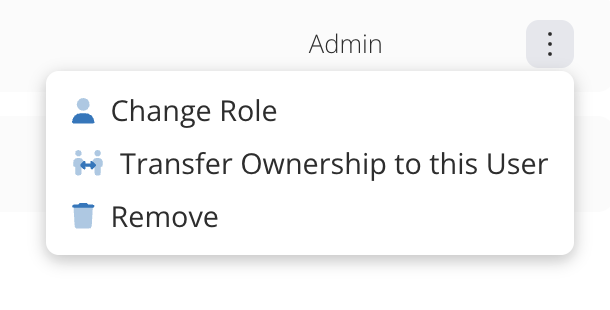
From the team page, find the team member’s name and click the “more options” menu on the right.
→ A drop-down menu will appear.
Click Transfer Ownership to this User.
If your account only allows one Editor:
Go to app.sourceandsummit.com and Log in.
Click your name or first initial in the top-right corner. Then, click My Account.
On the My Account page, scroll down to Change Email. Replace the current Account Owner’s email address with your new team member’s email.
Send your new team member a link to app.sourceandsummit.com. Since their email address is now associated with the account, they can click Forgot Password to create a new password.
Looking to share Ordos with musicians, accompanists, or lectors?
Visit Sharing Ordos to learn how.
Invitation limits
There is a limit of 5 Editor invitations on the Digital Platform (for accounts with multiple Editors). If your team has changed, the Account Owner or an Admin can remove unaccepted invitations or inactive users to free up space for new ones.